
Quick Summary
Understanding Image Resizing vs Compression is vital for website performance.
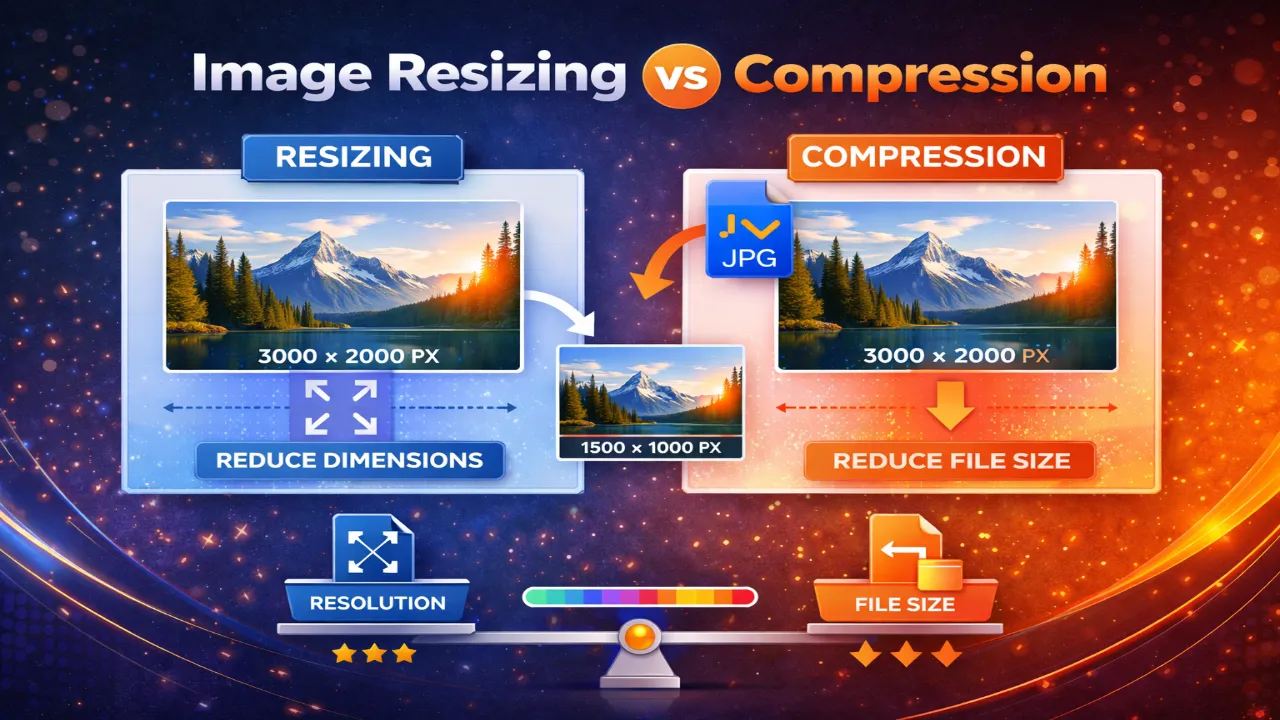
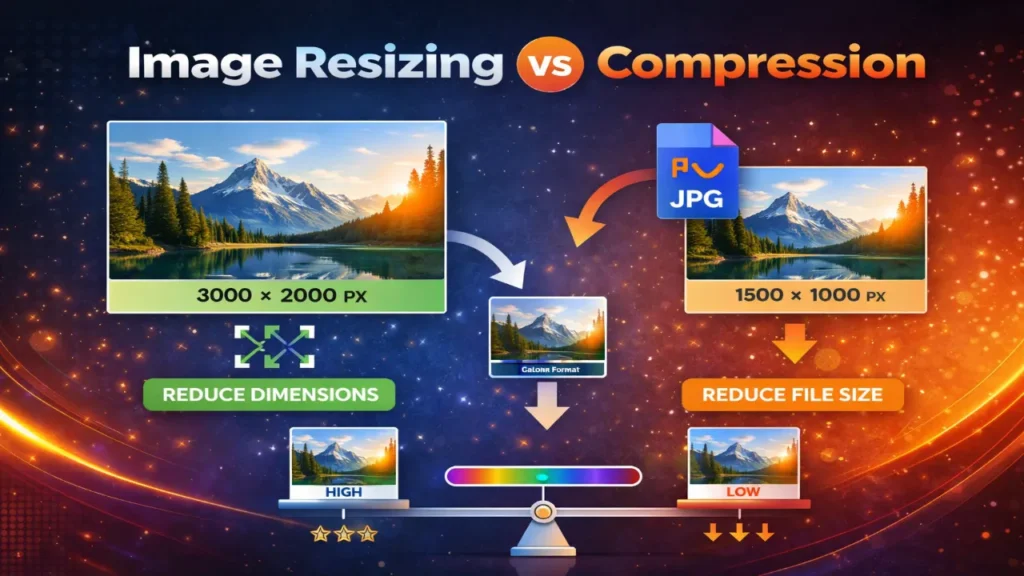
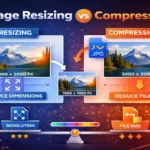
Resizing changes the physical dimensions (pixels) of an image, making it fit specific screen layouts.
Compression, however, reduces the actual file size (kilobytes or megabytes) by removing hidden data or reducing color depth.
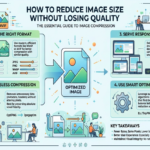
Therefore, you should resize images to fit your webpage layout first, and then compress them to ensure blazing-fast load times. Combining both techniques is the ultimate secret to passing Google’s Core Web Vitals.
Table of Contents
Image Resizing vs Compression
Have you ever uploaded a stunning photo to your website, only to realize it takes forever to load? You are not alone. In addition, slow websites frustrate users and hurt your search engine rankings.
According to 2026 data from the HTTP Archive, the average web page weighs about 2.5 MB. Shockingly, images account for more than 50% of that total page weight. Unoptimized media is the number one performance killer on the internet today.
If your site takes more than 3 seconds to load, 53% of mobile visitors will abandon it. To fix this, you need to understand two critical concepts: Image Resizing & Compression.
While people often use these terms interchangeably, they serve entirely different purposes. In this highly detailed guide, we will explore the exact differences, show you real-world use cases, and explain how to optimize your media perfectly.
What is Image Resizing?
Image resizing is the process of altering the physical dimensions of your digital photo. Specifically, it changes the width and height of the image, which is measured in pixels (px).
For example, a photo taken on a modern smartphone might be 4000 x 3000 pixels. However, the maximum width of a standard blog post layout is usually only 800 or 1200 pixels.
Uploading that massive smartphone photo directly to your blog is a huge mistake. The browser will have to load the giant file and shrink it down using HTML or CSS, wasting valuable time and bandwidth.
To fix this, you use a Image Resizer tool. By cropping or scaling the image down to the exact dimensions your website needs, you drastically reduce the file size and improve loading speed.
Benefits of Resizing:
- Perfect Fit: Ensures images fit perfectly within your website’s design framework.
- Browser Efficiency: Stops browsers from working overtime to scale large images down.
- Faster Load Times: Fewer pixels mean significantly fewer bytes to download.
What is Image Compression?
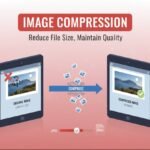
Unlike resizing, image compression does not change the physical width or height of your picture. Instead, compression reduces the file size (in KB or MB) by altering the data inside the image file.
When you use an Image Compressor, the software uses smart algorithms to find and eliminate hidden data. This process groups similar colors together or removes metadata that the human eye cannot detect.
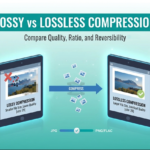
Furthermore, compression is broadly split into two distinct categories:
1. Lossy Compression
Lossy compression permanently removes some data from the image to achieve a massive reduction in file size.
Consequently, you might notice a slight drop in visual quality if you compress it too heavily. It is the best choice for large web photographs where a tiny loss in sharpness goes unnoticed.
2. Lossless Compression
Lossless compression reduces the file size without losing a single pixel of visual quality. It works by removing unnecessary background metadata (like camera details or location data).
Therefore, the file size reduction is much smaller compared to lossy compression, but the image remains perfectly crisp.
Comparison Table – Image Resizing vs Compression
To make things perfectly clear, here is a quick breakdown of how these two methods differ:
| Feature | Image Resizing | Image Compression |
| Primary Goal | Change physical dimensions (width/height). | Reduce file size (KB/MB). |
| Measurement | Pixels (px). | Kilobytes (KB) or Megabytes (MB). |
| Visual Quality | Remains identical (just smaller physically). | May reduce slightly depending on type (Lossy). |
| Best Used For | Fitting images into specific website layouts. | Speeding up web page load times. |
| Best Tool to Use | Image Resizer | Image Compressor |
Image Resizing vs Compression – When to Use Each
Knowing the difference is great, but knowing when to apply each technique is what makes you an expert. Let’s look at real-life use cases.
When to Use Image Resizing
- Website Hero Banners: If your website container is 1920px wide, resize your background image to exactly 1920px.
- Social Media Posts: Platforms like Instagram or X have specific dimension rules (e.g., 1080 x 1080px for square posts).
- Profile Pictures: A standard avatar is usually 150 x 150px. Never upload a 2000px image for a tiny profile icon.
- Thumbnail Galleries: E-commerce stores need uniform product thumbnails, usually sized around 600 x 600px.
When to Use Image Compression
- Speeding up WordPress Sites: Always compress images before uploading them to your CMS to keep your database light.
- Email Marketing: Large image files trigger spam filters or fail to load in email clients. Compress them first!
- E-commerce Product Pages: High-quality product images are heavy. Compress them heavily using lossy compression to keep the page fast.
- Photography Portfolios: Use lossless compression to protect the quality of your art while stripping out useless metadata.
Understanding Image Formats for Web Optimization
Choosing the right file format is just as important as resizing and compressing. For instance, a poorly chosen format can ruin both visual quality and site speed.
Here is a quick guide to the most common formats and how to convert them:
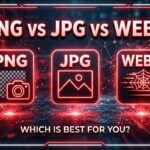
- JPEG / JPG: The standard for complex photographs with many colors. JPEGs handle lossy compression beautifully.
- PNG: Best for images requiring transparent backgrounds or simple graphics with solid colors (like logos). They are usually heavier than JPEGs. If your PNG is too heavy, consider using a PNG TO JPG converter.
- WebP: The modern king of web images. Developed by Google, WebP provides superior lossless and lossy compression. It can make images up to 34% smaller than standard JPEGs.
Pro Tip for Format Conversion:
If you have older images, you should upgrade them. Use a [ JPG TO Webp ] tool to modernize your media. Conversely, if you need backward compatibility for an older system, you might need a Webp To PNG or JPG TO PNG converter.
Real-World Case Studies and Statistics
Does mastering Image Resizing vs Compression actually impact your bottom line? The data says absolutely yes.
1. Google’s Core Web Vitals Data (2026)
Recent data shows that only 33% of websites currently pass all Core Web Vitals thresholds. The most common failure point is the Largest Contentful Paint (LCP) metric, which measures how fast the main content loads. Because images usually make up the largest content block, unoptimized media is directly responsible for failing Google’s speed tests.
2. The Cost of 1-Second Delay
According to industry statistics from Akamai and Colorlib, a mere 1-second delay in page load time results in a 7% drop in conversions and an 11% drop in page views. For a massive retailer like Amazon, a 100-millisecond delay can equal billions in lost annual revenue.
3. Case Study: Vodafone’s Speed Optimization
Vodafone focused heavily on improving its LCP score by optimizing and compressing its media. As a result, a 31% improvement in load time led to an 8% increase in online sales, a 15% boost in lead-to-visit rates, and higher overall customer satisfaction.
Common Mistakes in Image Optimization
Even seasoned web developers make errors when handling media. Therefore, watch out for these frequent blunders:
- Relying on HTML/CSS to Resize: Uploading a 3000px image and using code to display it at 300px forces the browser to download the massive file anyway.
- Saving Text in Images: Never use JPEGs for images that contain small text; compression will make the text blurry and unreadable.
- Forgetting to Strip EXIF Data: Photos contain hidden metadata (camera type, GPS coordinates) that add unnecessary weight.
- Using the Wrong Format: Using a PNG for a highly detailed landscape photograph will result in a massive file size. Always use JPG or WebP.
- Over-Compressing: Cranking lossy compression up to 100% will cause “artifacts,” making your beautiful photos look like blurry, pixelated messes.
Pro Tips for Maximum SEO and Performance
Want to push your website past the competition? Follow these advanced strategies for perfect image optimization.
- Automate with CDNs: Use an Image Content Delivery Network (CDN) to automatically serve correctly sized and compressed images based on the user’s specific device.
- Embrace Lazy Loading: Always implement “lazy loading.” This ensures that images below the screen fold do not load until the user scrolls down, saving initial load time.
- Use Descriptive File Names: Before uploading, rename your files from
IMG_1234.jpgtored-leather-running-shoes.jpg. This is a massive boost for image SEO. - Always Add Alt Text: Screen readers and search engine bots cannot “see” images. Describe them accurately using Alt Tags for better accessibility and rankings.
- Adopt AVIF: While WebP is great, AVIF is an emerging format that offers up to 50-60% better compression than JPEG. Start exploring it!
Frequently Asked Questions (FAQ)
Conclusion
In the modern digital landscape, user patience is incredibly thin. Therefore, understanding the nuances of Image Resizing vs Compression is no longer optional—it is a mandatory skill for survival.
To summarize, resizing is about making the image fit the physical space of your webpage, while compression is about minimizing the data weight of that image. When you combine both strategies, you create a frictionless, lightning-fast experience for your visitors.
Start taking your web performance seriously today. Audit your current site, leverage tools to resize your media correctly, and embrace modern formats like WebP. Not only will your users thank you, but search engines will reward you with higher rankings, lower bounce rates, and increased conversions!



Leave a Reply